
Workflows
Every document you send to Holofin is processed by a workflow: a configured sequence of steps that classify, segment and extract data from it. This page covers nodes, routing, and running a workflow through the API.
What are Workflows?
A workflow is a reusable document processing pipeline that you configure once and execute via a single API call. Instead of calling separate APIs for classification, segmentation, and extraction, you submit a document to a workflow and receive structured results.
A workflow can combine these steps:
- Classification: identify the document type (bank statement, invoice, tax form)
- Segmentation: split multi-document PDFs into individual documents
- Extraction: pull structured data based on document type
- Validation: optional human review gates for quality control
How Workflows Work
When you submit a document to a workflow, it flows through connected nodes. Each node performs a specific task and routes the document to the next step based on configurable conditions.
A typical workflow: classify the document, segment if needed, extract structured data
Workflow Nodes
Each step in a workflow is called a node. Nodes are connected by edges that define the execution order and routing conditions.
| Node Type | Purpose | Example |
|---|---|---|
Fraud Analyzer
| Runs forensic fraud analysis on the document | Detect tampering, metadata anomalies, suspicious edits |
Classifier
| Categorizes documents into types | Identify as "Bank Statement" or "Invoice" |
Segmenter
| Splits multi-document packages | Extract individual forms from a tax package |
Extractor
| Extracts structured data | Pull transactions from a bank statement |
Human Review
| Pauses for human approval | Verify low-confidence extractions |
Conditional Routing
Workflows support branching logic to handle different scenarios. Connect nodes with conditional edges to route documents based on classification results, confidence scores, or other criteria.
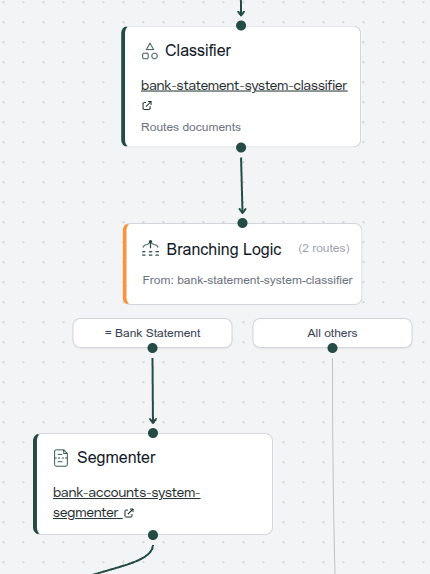
| Condition Type | Description | Use Case |
|---|---|---|
| Classification match | Route based on detected document type | Send invoices to invoice extractor, statements to statement extractor |
| Confidence threshold | Route based on AI confidence score | Send low-confidence results to human review |
| If/Else branching | Split flow into multiple paths | Process single-page vs multi-page documents differently |
| Default fallback | Catch-all when no conditions match | Route unrecognized documents to manual processing |
Configure routing in the workflow builder by clicking on edges between nodes and setting conditions. No code is required.
Executing a Workflow
To process a document, you create a workflow run via the API. The run tracks the execution state as your document moves through each node.
See the Workflow Runs API for complete documentation on request parameters, response format, and managing workflow executions.
Workflow Status
A workflow run progresses through these states:
Runs may also be paused (waiting for approval), failed, or cancelled
Getting Results
Once a workflow run completes, you can retrieve the aggregated results from all extraction nodes:
See the Get Workflow Run API for complete response format and result structure.
Using Webhooks
Instead of polling for status, configure a webhook to receive notifications when a workflow run completes. The webhook payload includes the full extraction results.